
Sponsor Lists
The Sponsor Profile List allows you to style and display your sponsor profiles on your website, creating an organised and visually consistent showcase of your sponsors.
In this article
Creating your Sponsor Profile List
You can create a sponsor list from two areas of the platform;
-
Website > Pages > open the page > Click Add content > Content > Collaborators > Organizations > Sponsor Profile List > +Add Sponsor Profile List
- Website > Content > Collaborators > Organizations > Sponsor Profile List > +Add
The Add Sponsor Profile List pop up will appear.
Start by adding a Title, then choose if you want to show the title on the website.
Set the Alignment of the Title if you choose to show it.
Optionally add a description. The description will sit underneath the title.

Use Categories?
If selected categories can be created here and then assigned to each sponsor. Type the name of the category you want to create and click enter on your keyboard.

Then you can access your individual sponsor profiles and you will find the categories listed for you to check off which apply to your sponsor.

Click save and then preview to see the updated categories. Here is an example:

List Style
You have list styling options; Slider, Tiles ,Detailed.
Each option reveals additional configuration.
Link Sponsor logo to
When a user clicks on the sponsor logo what should happen?
-
External Link = Send them to an external website
If external link is chosen it will use the website already associated with the sponsor profile.
- Detail = Display the sponsor profile
If details is chosen it will give you 4 options to choose from;
| Link | The detailed biography will be show on a new page |
| Expand | The detailed biography will be expanded in the list view |
| Pop-up | The detailed biography will viewed via a pop-up window |
| None | No 'view detail' button will be visible |
Grouped Sponsor Lists
You can use the Sponsor Type field in the sponsors' public profiles to classify each sponsor as a particular type e.g. "Premium Sponsor" or "Event Partner"
- Navigate to Website > Forms > Public Profiles > Sponsor Profile Form
-
In the Content type fields section click the + Sponsor Type green button to add it to your form.
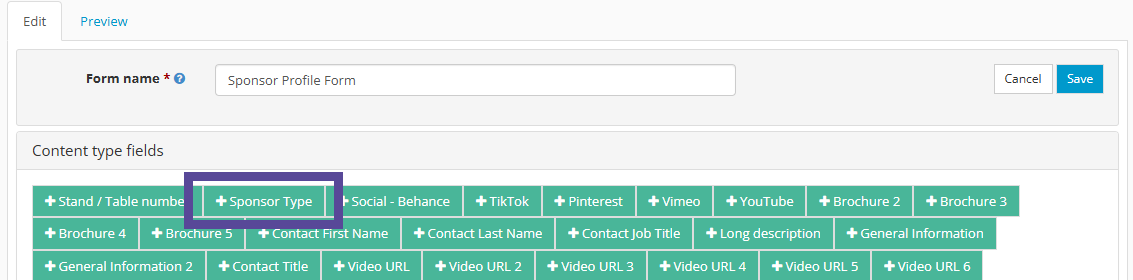
- It will be added to the bottom of your current form by default, you can configure the field for example if this is for admin purposes only then untick Use in published list? option.
-
Next add the values you wish to use in the options section of the sponsor type area.
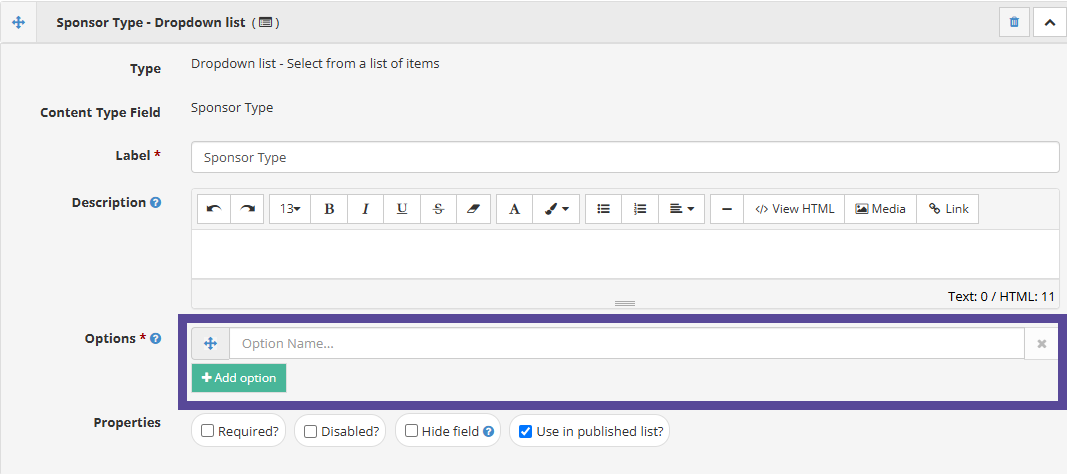
- Click Save when finished.
-
Now a new field will be present in your sponsor public profile, where you can assign the group.

- Once you have assigned the Values, return to the sponsor profile list and turn on the tool.

Example:

Use Sponsor Contact form
If you would like your site visitors to be able to contact Sponsors, you can add a contact form. This means that when the visitor clicks on the Sponsor's name in a Sponsor Profile List, they will find the option to contact this sponsor.
Sponsor Profile Order
- Ascending will order the sponsors alphabetically A down to Z.
- Custom will allow you to manually order the sponsor profiles by dragging and dropping them in the order of your choice.

Profiles to use
- Selected (Default) - adds only the sponsor profiles you manually linked to be displayed in your sponsor profile list
- All - Links all sponsor profiles on the system to be displayed in your sponsor profile list

Adding Sponsor Profiles to your list
This is where you link the sponsor profiles you wish to display in your sponsor profile list.
If you have already built the sponsor profiles then you can click Re-use other Sponsor Profiles
Either check the checkbox of the sponsor profile you wish to add to the list and click the blue Link selected box or click the icon of the link to the right side of the sponsor profile to link it.

If you want to build your sponsor profiles now, then click the +New Sponsor Profile

Removing Sponsor Profiles from your list
To remove a sponsor profile from your sponsor profile list, open the sponsor profile list and scroll down to Sponsor Profiles, you will see a link icon with a score through it to the right of each sponsor profile currently listed, click this to remove it from the list.

Adding the Sponsor Profile List to your website
When you are ready to add your Sponsor Profile List to your website, go to Website > Pages.
Choose the page you want to add your sponsor profile list to, or create a new page.
Your sponsor profile list is added to a page just like any other content item.
Click on +Add content in the section of the page you want the list to be placed on.
To find your sponsor profile list in the content menu, follow the path:
Content > Collaborators > Organisations > Sponsor Profile List and select the sponsor profile list you created by ticking the checkbox beside its name.
Then click Add Selected and save.