
Test Mode
When submitting an entry or making a purchase for test reasons, it is important to use Test Mode. Before you launch your event site, you should ensure you have thoroughly tested all aspects, including making test entries/nominations and bookings.
It is important to use this feature as all Test transactions can be deleted, and will not show up on reports once removed.
In this article
Activating Test Mode
Click the Test mode button under your username in the top right of the screen to activate the feature.
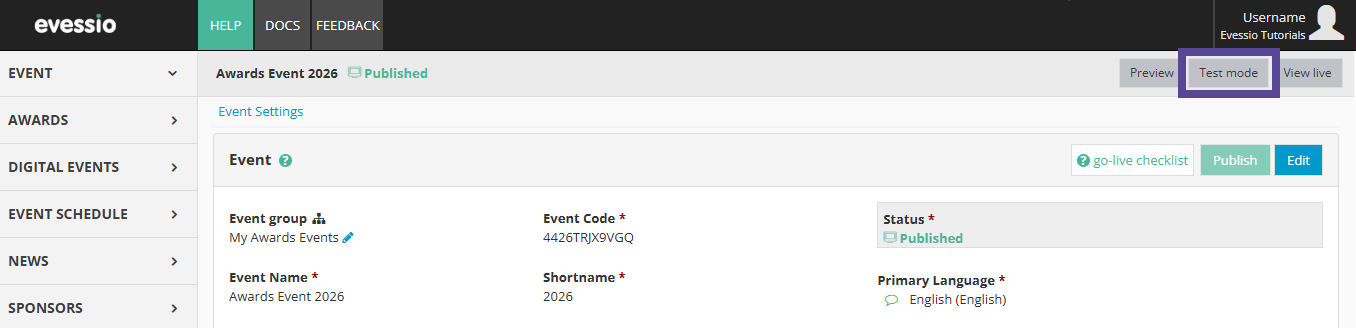
When an event is in test mode, you will see a strap along the top of the page.
If the page doesn't have the TEST MODE strap, it is not in test mode.

Warning ⚠
If you view your event home page Live, it will create a cached version of the page on your browser. If you then click Test mode, you will view the cached page and Test mode will not be engaged.
To resolve this, 1) navigate to your Home Page by going to Website > Pages, 2) Save the page, and 3) Publish your updates. Then, click Test Mode.
Deleting Test Transactions
To delete a Test transaction, go to Revenue > Transactions.
Click on the List tab, and then below this, select Tests.
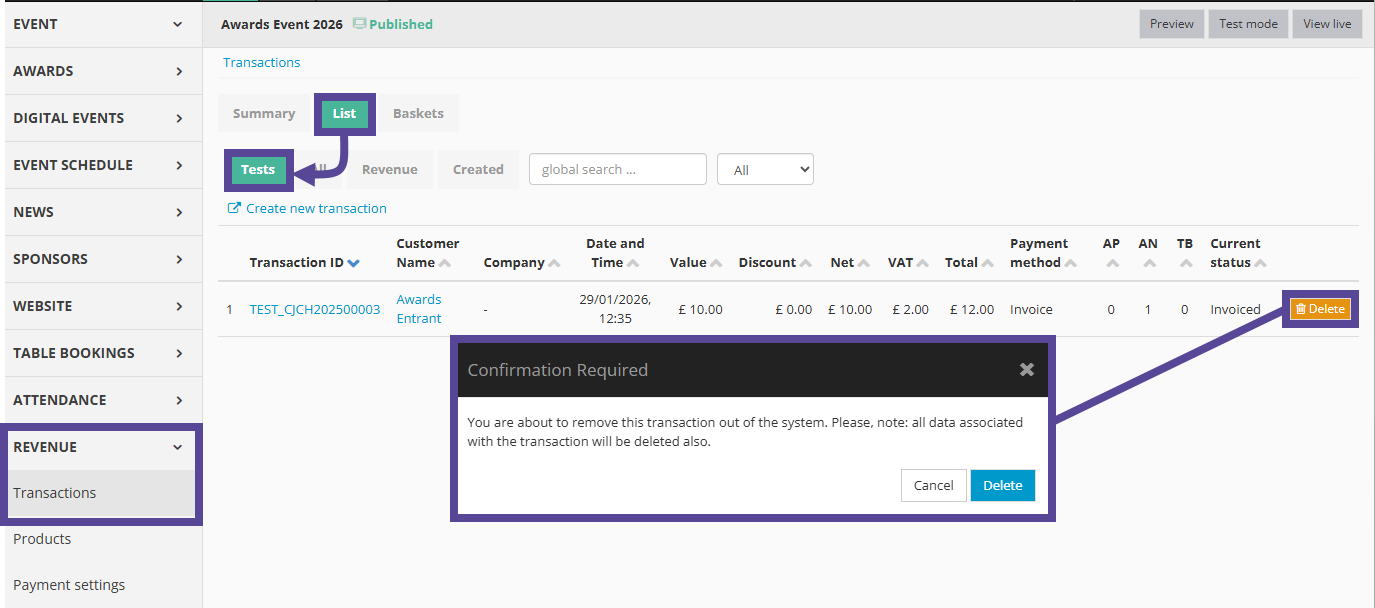
Find the test transaction you wish to remove, and click the orange Delete button.
A confirmation box will appear, asking you to confirm you wish to delete the transaction.
Click Delete.
Testing your credit card payment process without payment
If you want to test a paid transaction, and choose credit card as the payment method, you can do so without paying for the transaction. This allows you to test the confirmation page and email that your paying users will receive.
To begin, ensure you are in test mode before creating the transaction.
Add your desired product(s) to your basket, and proceed through each step until you reach the Summary page.
Select credit card as your payment method and click COMPLETE.
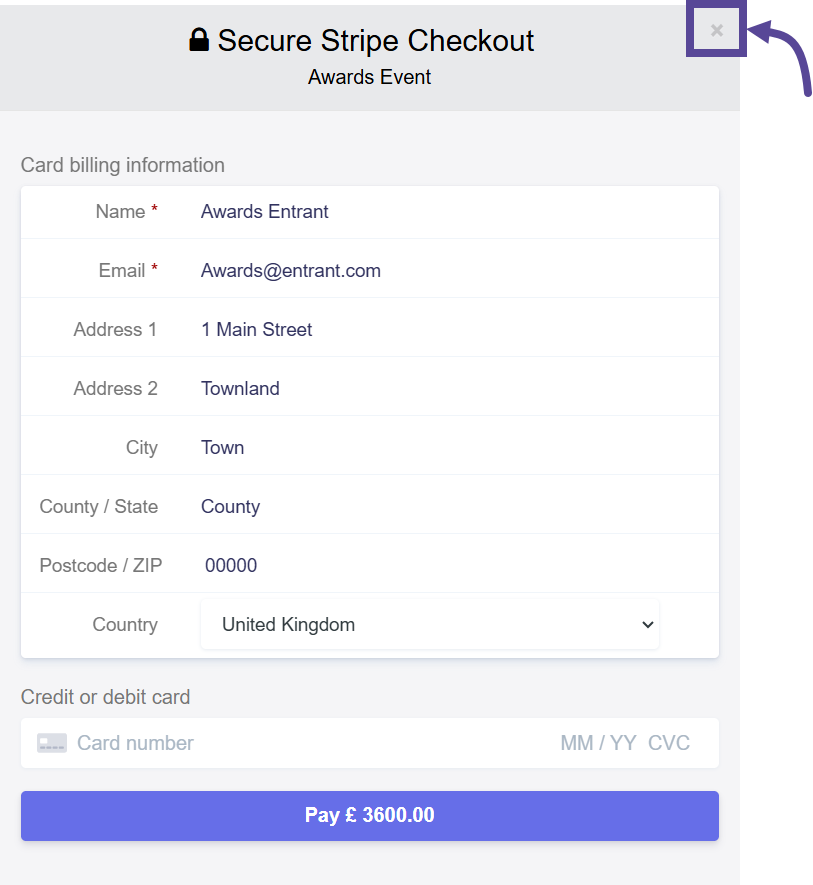
Then, when the payment window opens, do not enter information, and close the window.
Return to the Evessio Admin portal, and navigate to Revenue > Transactions > List > All.
Locate the transaction, and click on it's Transaction ID.
Inside the Transaction, open the blue ACTIONS menu on the right side of the screen, and select the option Set to Completed. Click Yes in the confirmation box.
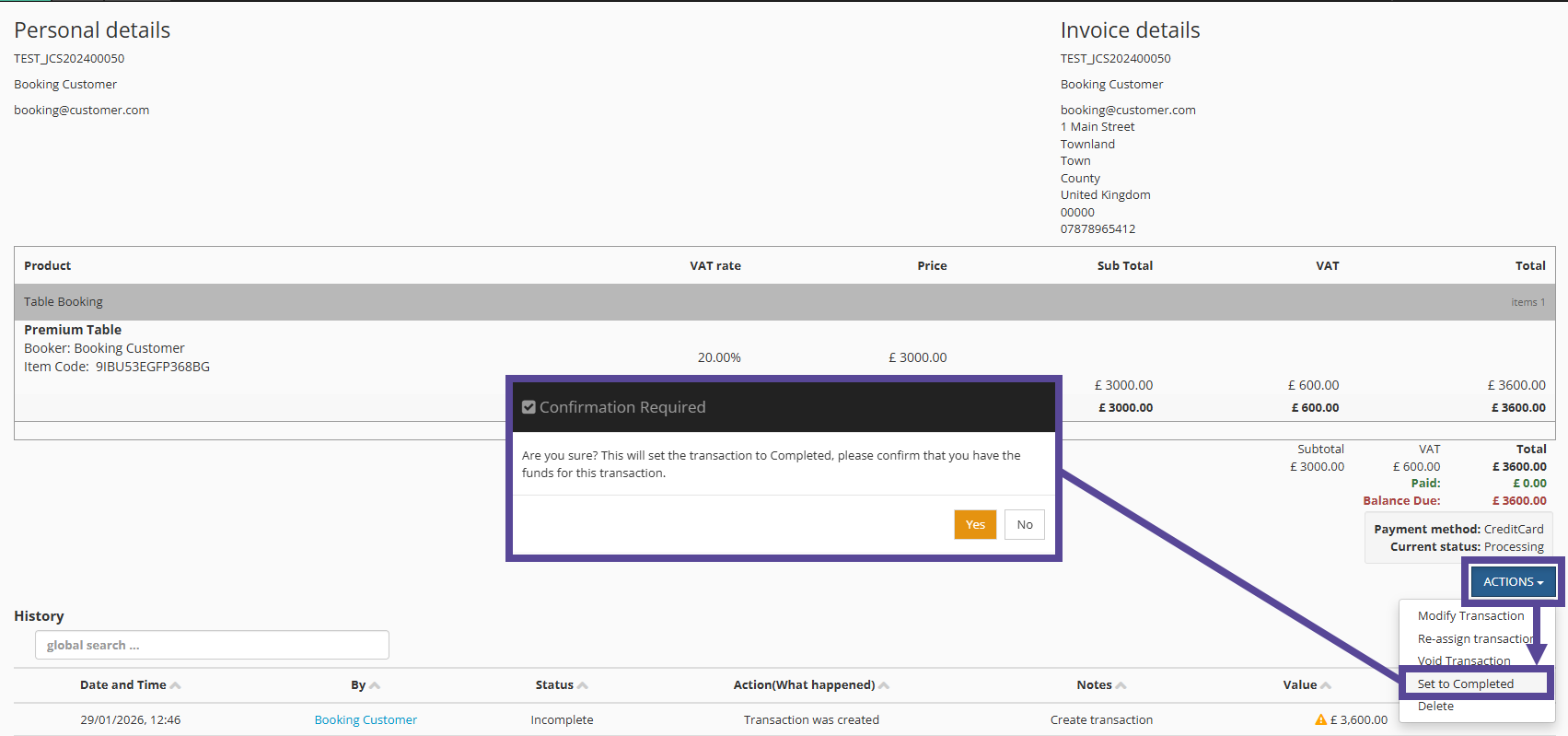
The system will generate the invoice/receipt.
To send it to yourself to make sure you are happy with it, open the ACTIONS menu, and select Send Latest Invoice. You can then review the email and attachment to ensure they are correct.
Amending the price of a product
During your testing, you may wish to amend the price of your product.
You may wish to change the price to zero, so you do not need to complete payment, or you may wish to reduce your product price to a nominal fee (e.g. 50p) to test and complete your live credit card process.
To do so, simply log in as an administrator, and add your product to the basket.
In the basket, you can use the admin controls on the right side to override the price of your product.
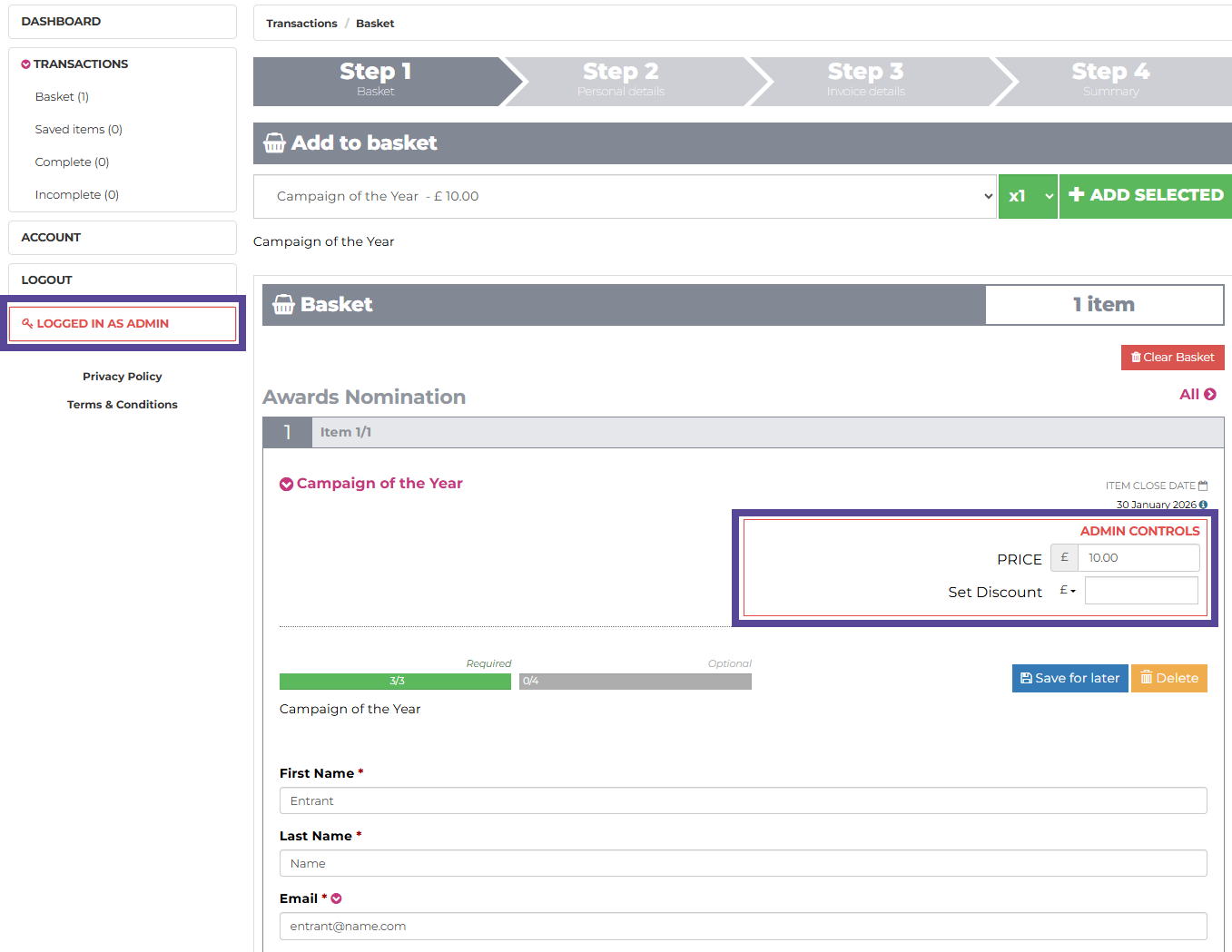
Complete your transaction as normal, and the new/zeroed price will be used through the remainder of this transaction.
Note 🗒️
Amending the price in the basket does not change the general price of this product. It is amended for this specific transaction only,