
Date based discounts
Date based discounts are a way of applying a temporary discount to your product(s) for a specific window of time, such as early bird offers or flash sales.
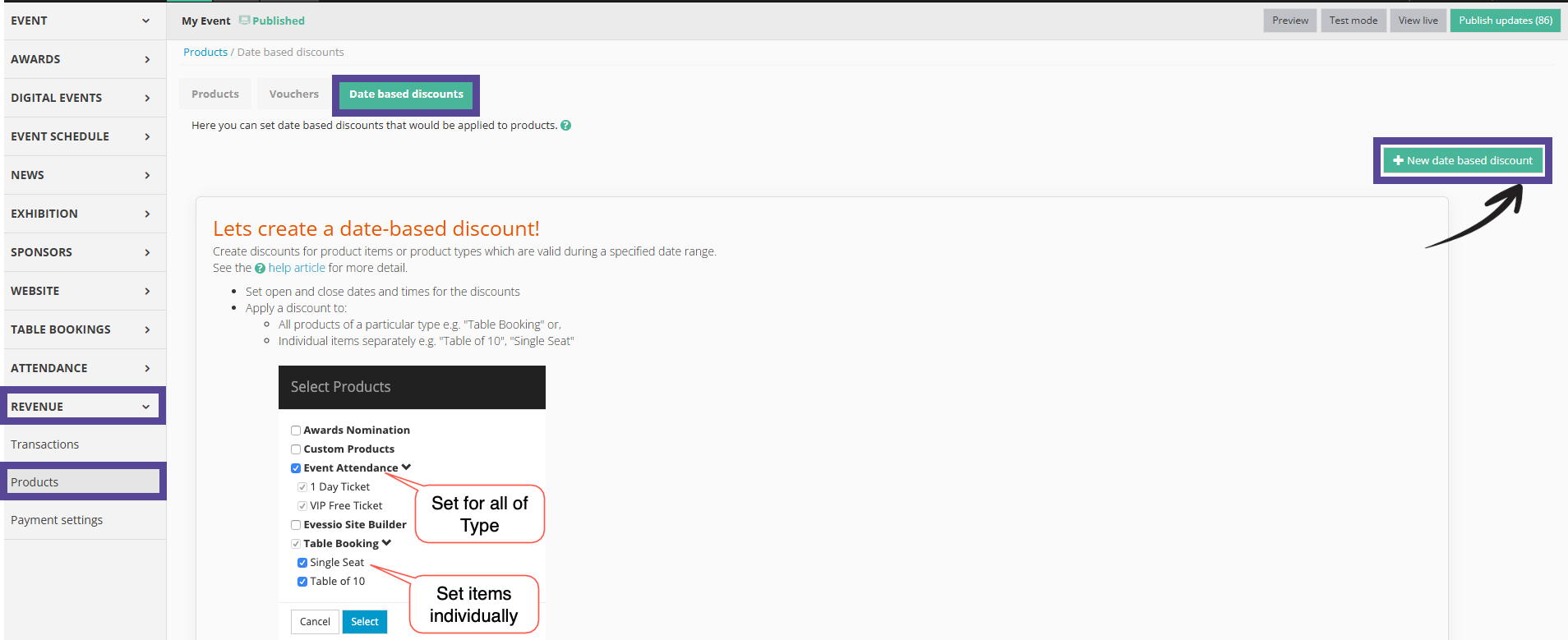
To set up a date based discount, go to Revenue > Products, and click on the Date based discounts tab at the top of the screen.
In this article
Creating your date based discount
To get started, click on +New date based discount.
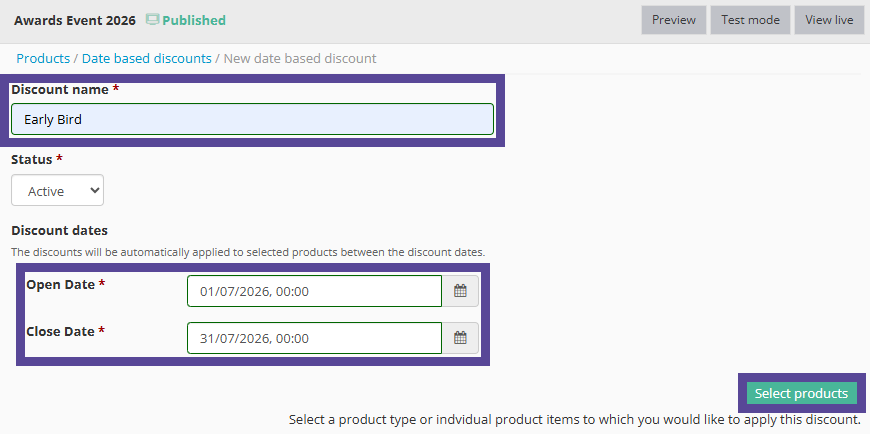
In the new window, give your date based discount a name.
Tip 💡
The discount name will be seen by users on your website, so keep this in mind when making your selection.
Next, determine the window of time this discount will be available by selecting an open date and a close date. The discount will automatically begin at the open date, and will automatically end at the close date, with your product returning to its original price.
Then, click Select Products.
Selecting products and defining discount values
In the pop-up, choose which products will be included as part of your date based discount.
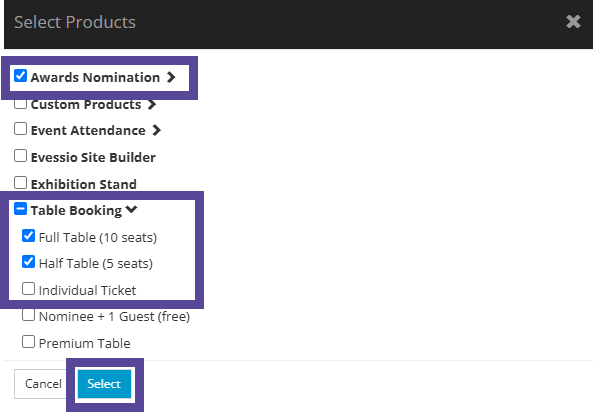
You can select a product type, i.e. Awards Nomination to apply a general discount to, or you can apply a different discount type/value for individual products.
Tip 💡
If you choose the type of product (i.e. Table Booking), your date based discount will be one rule for all products in the product type. If your discounts are different per individual product, select the items separately.
When you have chosen all products that will be part of your date based discount, click Select.
Next, define the discount that will be applied.
First, determine the Discount Type. You can choose between Discount and Set price.
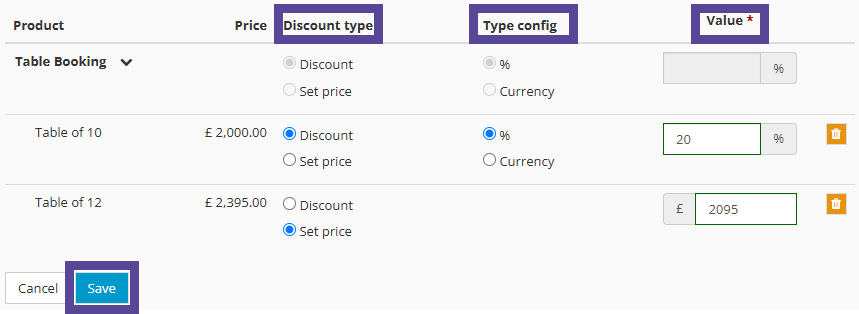
If you choose Discount, your date based discount will reduce your product pricing by a specific amount.
When you choose Discount, you can then determine if the discount will be a percentage (%) discount, i.e. 20%, or a currency discount, i.e. £100.
If you choose Set Price, your date based discount will change to a new, lower price for the duration of the dates determined previously.
Note 🗒️
The Set Price option can only be used to reduce the original product price.
If the Set Price value is higher than the Product Item price, no discount will be applied and the original product price will be charged instead.
To raise a product's price, update the price directly within the Products setup.
When you are done configuring your Date Based Discount, click Save.
You can set up as many Date Based Discount as you wish.
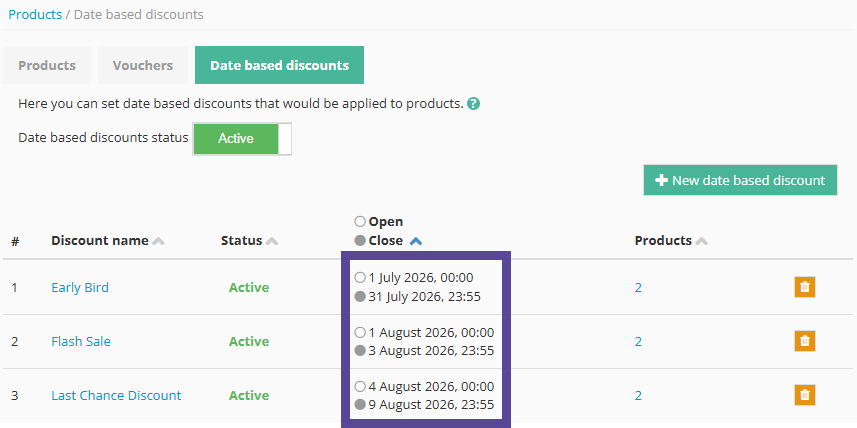
Note 🗒️
Date Based Discounts cannot overlap. If you attempt to set a date that already has a Date Based Discount associated with it, you will receive an error to rectify this.
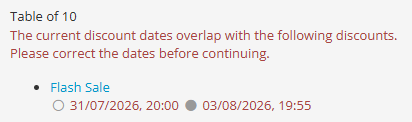
How your Date Based Discount will appear on your site
Your Date Based Discount will automatically activate and deactivate based on the dates you determined during its setup.
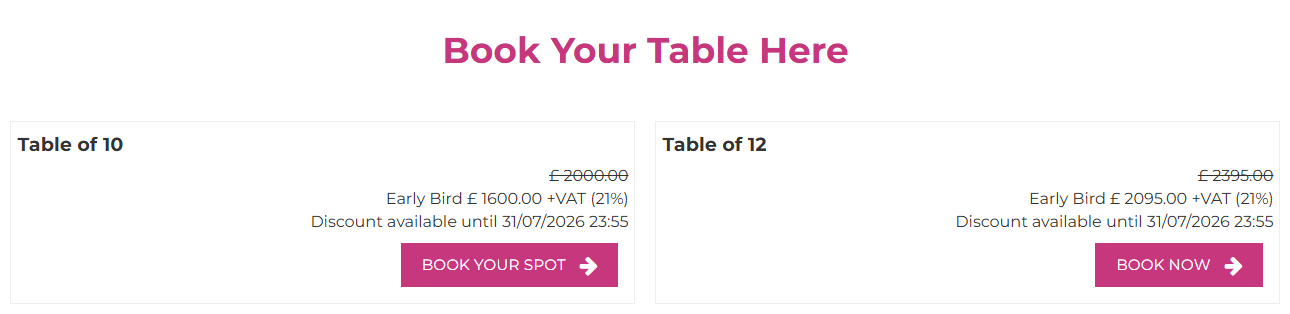
Your product(s) will display their original price with a strikethrough, and below show the name and price of your Date Based Discount. The end date of the discount will also be displayed.