
Nominations
The Nominations page is where you can manage your nominations coming in for your categories.
In this article
Viewing your nominations
Navigate to Awards > Nominations
Product Dashboard overview
Use the product dashboard for visual updates on your nomination progress, digital charts are available to view. Click the View or Sort options to display different layouts. Remember to click Refresh to have the latest data.

Nominations per category
Scroll down to the Group /Category section.
Open your group by clicking the black arrow which points right.
You will see 4 columns to the right
Baskets, Incomplete, Complete and Total
This will give you numerical values of where users are in the nomination process.
Click here to read more on what these stages mean

For complete nominations you will use the complete column.
Next open your category by clicking the black arrow which points right and it will list the nominations in blue.
Click a nomination (blue text) to read the entry.

The section in the top left is the Nominator details, we obtain the nominators name and email when they create an account on Evessio and you need to create an account to make a nomination.
You will also find the transaction ID hyperlinked to take you to the record.

When you scroll down you are then able to see the submitted answers to the category questions answered by the nominator.
You can click the print button if you want to print or download this specific submission as a pdf.
You also have the ability to choose which data points are included in the pdf.

Downloading your nominations
Navigate to Awards > Nominations > Click the blue Excel Export button on the right side (Next to the categories)

You can also navigate to Event > Data > System Reports and download the Nominations Summary or Detailed report.
Warning ⚠
The Excel Download button will only appear if you have at least one nomination.
To read more on the Nomination Report please click here
Editing Nominations
How can an Admin edit nominations?
Admins can make changes to the nomination submissions at any time including when the nomination dates are closed.
Go to Awards > Nominations > Find your nomination and open it.
You will see a blue pencil icon next to each submission, click the blue pencil to edit the submission, once edited click the blue save button to save.

Once complete, you will see a revisions text in blue which contains the previous answers to the question. A useful tool if you ever need to revert back to an original answer for example.

How can a customer edit their nominations?
Up until the submission deadline, customers can make changes to their own nominations.
If you want to check the submission deadline, go to Revenue > Products > on the Awards nomination card you will see the Submissions editing field.

The customer will need to follow these steps:
Please note: The instructions below are written for your customers and can be shared directly with them.
1. login to your account

-
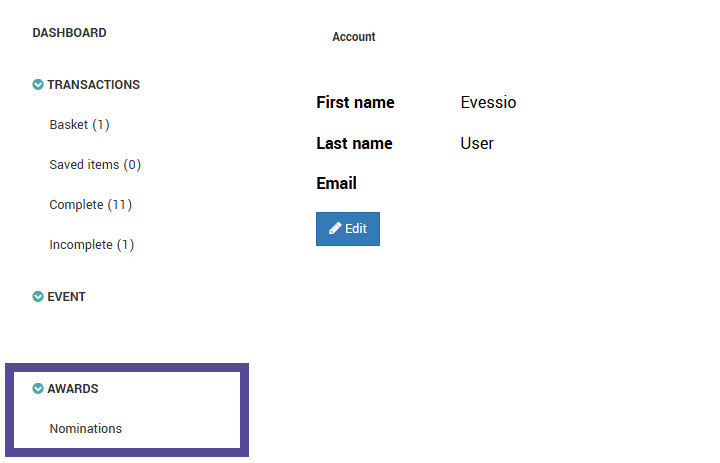
In the left side menu click AWARDS > Nominations
-
Click the blue Edit button next to the relevant nomination
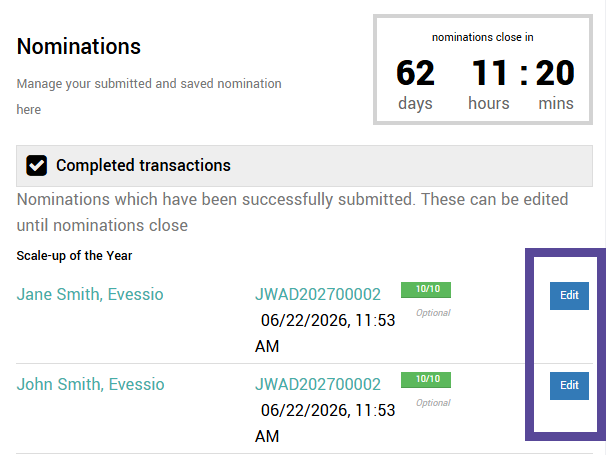
- You can then edit the submissions and click Save when complete.

Validating or Disabling your nominations
As an admin you are able to validate or disable any nomination which you receive, this is good practice for several reasons;
- Organization - if you and your team need to review your submissions as they are received or before they are pushed forward to Judging the validating tools allows you to track which submissions have already been reviewed by marking them as validated.
- Judging - When importing nominations into Judging rounds you are able to choose to only import nominations which have been validated or enabled for example.
- Mailshots - When targeting recipients with email communication, again you are able to filter out validated vs not validated or Enabled vs disabled nominations.
Validate a nomination
To Validate a nomination go to Awards > Nominations > Find your nomination and open it.
You will see a Validate button in the top right corner

Once you click Validate and return to the list of nominations, you will see a green tick next to the nomination, confirming that specific nomination has been reviewed/accepted for example.

To remove the validated status, click on the nomination and click green Clear Validation button.
Disable a nomination
To Disable a nomination go to Awards > Nominations > Find your nomination and open it.
You will see an orange Disable button in the top right corner

Once you click Disable and return to the list of nominations, you will see the nomination name is now crossed out, meaning that specific nomination is now disabled.

Moving your nominations
If you would like to move your nominations into a new or different category, this can only be achieved within a Judging round. Please see here how to move your nominations.
Cloning your nominations
You are able to clone a nomination, this use case is quite common if for example you feel a nomination would also qualify for a different category and you don't want to ask the customer to send another nomination themselves.
Cloning a nomination creates a full copy of the original nomination.
This means you can make modifications to the cloned nomination without changing anything in the original nomination.
All copies of the nomination can then be imported into a judging round and moved into categories as required. See here for more
Note 🗒️
If the clone nomination is being moved into a category which has different questions this does not effect the copy. It will contain the same questions as the original nomination.
To clone a nomination go to Awards > Nominations and click the green Clone nominations button

Next select the nomination(s) you would like to clone and click the blue Clone Selected button.

To clone a nomination a new transaction record must be created. The new transaction will be automatically created and the items will be added to it.
You have two options to choose from when setting the Transaction status:
| Incomplete | Complete |
| Nominations in Incomplete transactions will not immediately be available for judging. | Transactions created with completed status will always be free |
| Incomplete transactions must be processed separately by customers or admins after they are created. If you | All items will be set to zero cost (regardless of actual prices) |
| Use this approach if you require payment via invoice or credit card using the checkout process. | Nominations in these transaction will immediately be available for judging |

Next select who the transaction customer should be. If the customer does not need/want access to their duplicated entry in the logged in area, and does not need to process an incomplete entry or you will be processing the incomplete entry for them you should select Me. You will be the owner of this transaction.
If you would like to assign the transaction to someone else so they can complete and pay for the entry or just so they have access to the nomination in the logged in area you should select Someone else.
If you select Someone else to own the transaction, then you also need to state weather you want to notify them and/or attach any active product type attachments.
To read more on re-assigning transactions to customers you can see here
| Me | Someone else |
| The transaction will be created in your account | Select an existing user or create a new account holder to 'own' the transaction |
| You can complete it via the event website if Incomplete or re-assign it via the admin console | Completed, free transactions will require no action |
|
|
Incomplete transactions will require the owner to process them via the checkout flow before nominations are available |
When ready you can click the blue Finish Cloning button.

You will now find the cloned nomination in the same category. All cloned nominations have a small symbol comprising of two circles beside it. The original nomination will have a single circle beside it. If a cloned entry is part of a incomplete transaction the two circles will be yellow. If you are unsure hover over the symbol with the mouse to see the explanation of the symbols.

Updating your nomination dates
You can extend or even shorten the nomination open dates by navigating to Awards > Nominations >
Click the blue pencil icon on either the opens or close date/time to make your updates.

Once adjusted click the green tick icon to save.

You can also check and adjust all event date milestones via Event > Settings.
Other frequently asked questions
What does a yellow astrix mean next to a nomination?
This signalizes that the transaction payment method was an invoice which has not been marked as completed yet.

Next to the nominations counter what does the number in brackets mean?
This indicates the amount of disabled nominations

How do I change the nomination names?
To understand how nomination names work and choose a different name please click here