
Add-on Products
Add-on Products can be created to offer additional items alongside your main (parent) product.
These can include extras such as furniture or cables for exhibition stands, drinks packages for table bookings, or even charity donations.
Add-ons are grouped into types, with different options and pricing to suit your event setup.
Add-on products must be bought at the same time or after purchase of a parent product; they cannot be purchased as standalone products. Additionally, there are no limits applied to add-on products.
Note 🗒️
If you prefer for your products to be able to be purchased independent of a parent product, or if you wish to apply a limit on how many you sell, you may wish to consider Custom Products.
To get started, go to Revenue > Products, and click on Add-on Products.

In this article
Creating Add-on types
All add-on products will be associated with a type, which you will use to group your add-on product.
To create a new add on type, first ensure you are in the tab called Add-on types, and then click +Add new type.

Add-ons can be grouped by logical types e.g. "Furniture" or "Wine"
- Types can have options e.g. "Size" - large, Medium, Small or Colours, etc
- When adding a product of a certain type you can select from the available options and set prices in various ways for the options
- You can add as many options per type- (only 3 may be applied to a single product)
- Add unlimited values
Creating a new add-on product
To create a new add on product, first ensure you are in the tab called Add-on products, and then click +Add new product.

-
General Settings
Give your new add on product a name- this will appear on your website to your users.
Then, add a description which will be used to describe the add on and what is included.

Finally, optionally include an image to accompany your add-on.
-
Availability

Next, choose the status. There are three status options:
| Active | The add on product is active and is available for purchase within the dates defined |
| Inactive | The add on product is inactive and is not available for purchase, even within the dates defined. |
| Admin Only |
The add on product appears as inactive and is not available for purchase by general users. Admin Only items are automatically hidden from the dropdown for all except admin users. |
-
Option Configuration
Here, select the type of add-on from the options you have previously created.

Then, assign the Parent Product(s) of this add-on product. Your add-on will only appear for purchase alongside the parent product(s) it is associated with.
Click on Assign Products to choose the options. You can choose from all of your available product types.
-
Pricing
In the next section, complete the Pricing details.
Add-on prices are very flexible and can be set in a number of different ways.
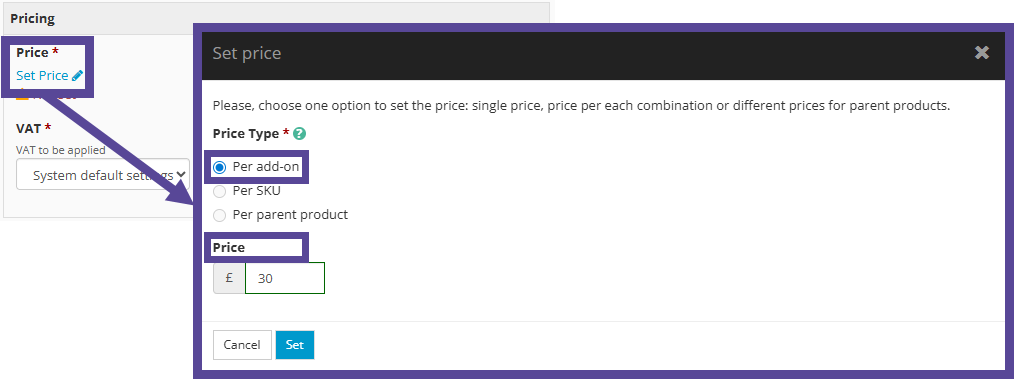
- Per add-on
-
This options allows you to assign one fixed price for the add-on item, regardless of which product(s) are selected.
-
- Per SKU
- It is possible to create various combinations of items based on options e.g.
- Table - metal
- Table - wood
- In that example the metal table may cost more than the wood table and per SKU pricing caters for this
-
The system can generate all possible combinations of options and your can then assign codes for each combination and if required, separate prices
- It is possible to create various combinations of items based on options e.g.
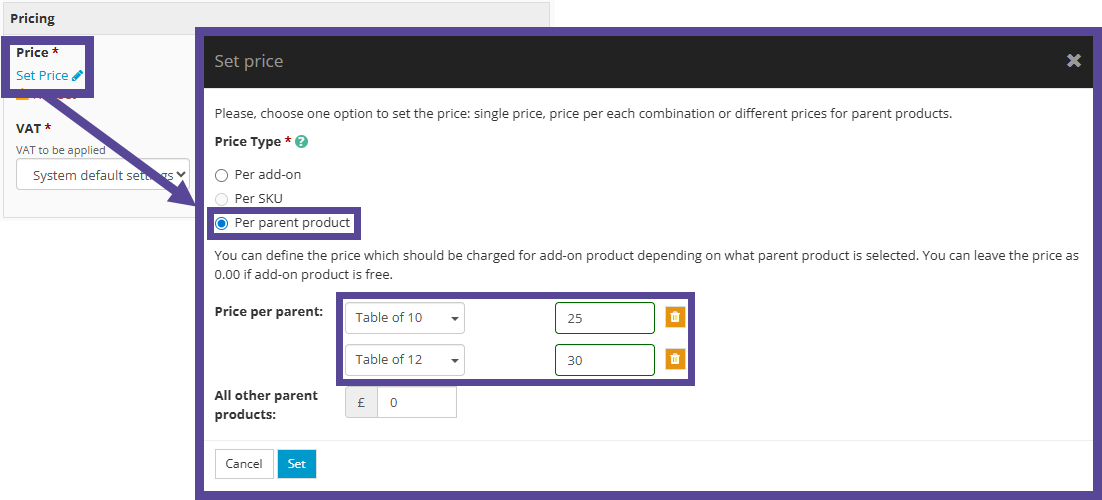
- Per parent product
-
You can set the price per parent product e.g. a drinks package will cost £30 for your Table of 12 and £25 for your Table of 10.
-
Finally, assign the VAT settings. If your add-on product should follow your event's standard VAT settings, leave this option at System Default Settings. If you prefer for this add-on product to have different settings to your general event, choose one of the other options.

Note 🗒️
Click here to learn about different VAT settings.
Once you are finished configuring your new product, click Save.
Selecting Add-ons in the purchase journey
Customers can see and select add-on products from within the Basket.
Once a parent product with available add-on(s) is added to the basket, the Add-on option will appear.
Click +Add-on Products, and choose the product(s) from the new window.
The options and quantity can be selected. Once all add-on choices have been made, click Close and Continue, and the customer can complete their purchase.
Add-ons can also be bought after the completion of a parent product purchase.
